Tuesday, March 27, 2012

Coming soon: Super-robust music server

I'm a huge fan of the Logitech's (or should I say Slimdevice's) range of Squeezebox players. I own three currently and use them every day to stream my entire CD library in high-quality FLAC format around my house. I absolutely love them.

Accordingly, I'm a long-term user of the Logitech Media Server software (nee. Squeezecenter, Slimserver) and have run this on all sorts of servers over the years, including a custom build PC server, a Buffalo Linkstation, and currently a Synology Diskstation. The Diskstation is brilliant - well supported, small, quiet, and efficient. However, with now over 1,000 CDs on the system, I've started to think about building a new super-robust server to protect my collection.

So, here's what I'm planning:

Hardware:
  • HP Proliant N40L Microserver. Currently £230 approx, with £100 cashback until the end of March. This is an absolute bargain in my opinion for a 4-bay, 2Gb RAM server including a 250Gb disk. I have mine currently on order from eBuyer (www.ebuyer.com).
  • Sony SATA DVD drive from which to install the OS.
  • 4Gb USB flash drive to install on the Microserver's internal USB port onto which to install the OS.
  • 1x WD 2TB hard disk. I have this spare from a previous project and will use this to start my RAID array. Once up and running, I plan to migrate other disks from my existing NAS to increase the capacity on this new server.
  • Total cost after cash-back: £149.00
Software:
  • I have been exploring the excellent FreeNAS 8.2 (www.freenas.org) and really want to use this for the following reasons: ZFS file system for fault-tolerance and error correction; regular filesystem snapshots; RAID 5; small & fast footprint; very quick to install, and good support.
  • Logitech Media Server (LMS) 7.7.1. This is the tricky bit as there is no official method that I can find to install this on BSD UNIX (on which FreeNAS is based). I've played around with this on Virtualbox and haven't found a way yet to install LMS yet. Herein lies the major challenge of this project!
I'm looking forward to putting this all together and if I can get LMS working on top of FreeNAS I'll let you know how I do it. Meanwhile if anyone has already achieved this please post a comment with some tips!

Thanks for reading,
Nick


Thursday, February 16, 2012

Convert UK (or other) Motorola Xoom to GED with Jelly Bean

** IMPORTANT EDIT 31/07/2012 **
If you have been patiently waiting for Jelly Bean to land on your GED Xoom, wait no more. You can force the upgrade by clearing the Google services framework via Settings - Apps - All - Google services framework - Clear data.

Having done this, go back to 'About Tablet' and hit the 'Check for updates' button and the latest update should appear. 4.1.1. This has worked for me today.

EDIT 24/07/2012: Confirmation that Jelly Bean is on its way for the Xoom - hopefully within the next week:
http://www.androidcentral.com/case-you-needed-confirmation-it-jelly-bean-will-be-arriving-xoom-wifi

EDIT 28/06/2012: With Google's announcement of Android 4.1 'Jelly Bean' yesterday, it appears that the Xoom will receive this update some time in July. I hope this will automatically appear on my ICS Xoom, so when it does I will post an update with details on the upgrade.

-->

I bought a Motorola Xoom last year and think it is superb. Living in the UK though I have been keen to obtain Ice Cream Sandwich (ICS) but rather disappointingly it hasn't officially been released yet. It turns out that the non-US Xooms are not officially 'Google Experience Devices' and so have some amount of customisation in their OS, making updates slower to emerge as a result. The US devices however have no such restrictions and are already able to upgrade to ICS.

The excellent Xoom forums have a good article posted on how to safely convert your Xoom to one running the stock US ROM, which you can then update to the latest release. I tried this the other day and am delighted with the results. Everything works - I still have access to the UK App Store (with prices in GBP) and the ICS experience is genuinely much slicker than Honeycomb. So, if you are impatient and wish to try this yourself, here is how I did it.


Firstly a warning:

  • THIS PROCEDURE WILL WIPE YOUR XOOM AND ALL DATA ON IT - BACK-UP NOW.
  • THIS PROCEDURE MAY STOP YOUR XOOM FROM WORKING PERMANENTLY.
  • THIS PROCEDURE WILL MOST LIKELY VOID YOUR WARRANTY.
  • FOR PRECAUTION CONNECT THE XOOM POWER SUPPLY DURING THIS PROCEDURE.

Still here? OK - I'll start with two pages for reference from which I derived this procedure:

http://developer.motorola.com/products/software/?pubid=987654

You will need to install the Android SDK on your PC / Mac / Linux box - see elsewhere in this blog for instructions for various Linux installations, or visit this page:

http://developer.android.com/sdk/index.html

Now for the procedure:

1. Connect Xoom to your computer via USB.
2. On the Xoom, go to Settings -> Applications -> Development -> Enable USB debugging - tick this.
3. Download MZ604_HWI69.zip from the Motorola Developer link above. You will need to register to access this file but this is a simple step. Unzip contents of MZ604_HWI69.zip into a folder. Move this folder into /Applications/eclipse/android-sdk-mac_x86/platform-tools/, or wherever this folder exists in your Android SDK on your hard disk. This last stage is very important you do correctly otherwise the commands below will not be able to find the ROM image files.
4. Now, open a terminal and execute the following (these examples were run on a Mac but should be the same for Linux. Windows users will need to adjust these to suit - see the Xoom Forums post for examples for Windows):

cd /Applications/eclipse/android-sdk-mac_x86/platform-tools

5. Check your PC is talking with the Xoom over USB with:

./adb devices

Which should return something like:

List of devices attached 
3848204958a394e5 device

6. Then start the procedure to flash the US ROM with:

./adb reboot bootloader

7. The Xoom reboots. When the Xoom screen shows "starting fastboot protocol support" now type in the terminal:

./fastboot oem unlock

8. Now use 'volume up / down' buttons on the Xoom to answer the displayed questions to accept the license. After some formatting, the device reboots. Now manually power off the Xoom and then, holding the 'volume down' button, power on again. You will enter fast boot again. Now in the terminal type:

./fastboot flash boot MZ604_HWI69/boot.img 
./fastboot flash system MZ604_HWI69/system.img 
./fastboot flash recovery MZ604_HWI69/recovery.img 
./fastboot flash userdata MZ604_HWI69/userdata.img 
./fastboot erase cache
./fastboot oem lock

9. Again, use the 'volume up / down' buttons to answer the questions. The Xoom now reboots into the US ROM. Once booted for the first time, start downloading all the system updates in the usual way. After 5 or 6 of these, your Xoom will eventually boot into ICS. That's it!


To return to UK version repeat the above using MZ604_H.6.2-24_Retail_Europe.zip (N.B. I have not tried this - I plan to keep my Xoom in it's GED guise and hope it receives Android Jelly Bean later this year)!

I hope this works for you. Good luck if you do try, and thanks for reading.

Sunday, August 21, 2011

Top Gear meets a camera store in Hong Kong

I've always been into cameras, and in the last couple of years have got quite seriously into photography. Recently I've bought a few bits of new kit and found on-line reviews a great help in choosing the right compromise. Better still are the video reviews where camera experts actually demonstrate the kit in the real world, and in my searches no-one does these better than DigitalRev TV.

From what I can fathom, DigitalRev are a Hong Kong based camera shop serving primarily the UK market. However, their web site not only sells you kit, but it also hosts tips & review reviews in both written and video form. The videos for me are pure entertainment, with the host Kai Wong (who appears to be of Hong Kong origin, but must have spent some impressionable years in the UK) doing for cameras what Jeremy Clarkson does for cars. His videos are very well made - can be a tad crude at times - but generally are great fun and very informative.

I bought an Olympus E-PL1 camera and Billingham Hadley camera bag on Kai's recommendation and love both items. Kai is an interesting character - Leica & Nikon loving, but usually often seen testing Canon gear. He's always inventing unusual ways to test lens 'bokeh' and does a great take-off of your stereotypical British paparazzi. His latest video is a good example of the formula - actually, this is a self-take off - gently mocking Kai's much more traditional predecessor on the DigitalRev TV channel. If you're into cameras, and enjoy a 'Top Gear' style sense of humour, then I recommend you check out DigitalRev TV.


Thanks for reading, and happy shooting!
Nick

Sunday, August 7, 2011

The marvellous Mac.

I briefly blogged a while back that I'd taken the plunge and purchased a new Macbook Pro (13" i5 Thunderbolt). I've set this up as a desktop replacement, connecting it to my existing Samsung LCD monitor, giving me a 2-screen set-up, perfect for photo editing which is my main use for it. Having lived with this for a few months now (and recently upgrading to Lion), I can confirm it is everything I hoped it would be.

For a long while I've wanted to break free from Windows but have never found a satisfactory alternative in Linux. Nice as many distributions are (especially my favourite, Fedora), they all have one fundamental flaw - lack of support for commercial desktop apps. I wish to use MS Office, Photoshop, and iTunes - all of which just do not exist on Linux (although, of course, similar alternatives are available). Having tried hard to migrate to these alternatives, they simply do not give me the functionality I want. As such, I had 2 choices: stick with Windows, or 'Think Different' with a Mac.


So, how have I found the Mac? It's not perfect, but it's pretty damn close, and to be honest, it's by far the best computing experience I've ever had. Here are the pros and cons as I see them:

Cons:
  • Despite the powerful processor and large memory, apps still tend to 'hang' more often than I'd like, exhibiting the spinning beach ball pointer while they think about what to do next. What's that all about?
  • The hardware is somewhat expensive compared to equivalently specified Windows laptops.
  • Hmm, I can't think of any more cons!

Pros:
  • The hardware, despite it's price, is absolutely exquisite. The aluminium unibody detail is wonderful - having a solid base with no fans to suck the fluff from your trousers means you can properly use it on your lap without fear of gunging up the internals.
  • Wonderful screen.
  • Very quiet most of the time - silent hard disk, very quiet fan, and no flashing activity lights. Fan does get noisy when the processor is working hard however.
  • Great backlit keyboard, although the flat keys take a little while to get used to.
  • Appstore - borrowing heavily from Linux repositories as a way of distributing software, I have to say this is such a good system. Being able to purchase high quality apps and install them almost instantly is just better.
  • Support for commercial apps on a Unix-based system is great - MS Office is very smart on the Mac, and I have since moved from Photoshop to Aperture which is simply a joy to use.
  • System updates are handled in a smooth and unobtrusive way, similar to Linux. No longer do I have to suffer Window's insistence that, before you can get any work done, you must spend half a hour installing updates.
I've always been dismissive of Macs as expensive form-over-function devices, although I have always admired OSX since it's release. Whilst they do cost more, I genuinely believe you get value for money especially with such a high quality of build. I can't see myself replacing the hardware for many years, and with OS upgrades for only £20, and apps cheaper via the appstore, the running costs feel less than Windows.

So, I'm very happy to kiss goodbye to Windows. I also bid a fond farewell to Linux desktops (although I will still run some form of Linux on my netbook - currently Fedora 15). If you too are trying to break free from Microsoft's finest, and Linux just isn't delivering, then save-up and buy a Mac - you'll love it.

Thanks for reading, Nick

Monday, July 11, 2011

Note to self: coming soon!

Long-overdue blog updates coming, featuring:

  • Mac OS X vs Linux - which is my favourite Windows alternative and why?
  • Fedora 15 - in my mind the best Linux desktop out there.
  • Cars: The Goodwood Festival of Speed
  • Google +
  • Chromebooks
  • Photos & cameras, including my new quirky favourite: Olympus EPL-1 fitted with a Lumix 20mm F1.7 'pancake' lens.
  • More music lists.
  • Possibly some work-related talk.

Come on then Nick - warm-up those fingers.

Monday, February 28, 2011

Irresistible Apple

I've finally been sucked-in to the hype and can resist the shininess no more. Last week I ordered my first Apple Mac - a brand new i5-powered Macbook Pro 13". It's the base-level machine only with the HDD expanded from 320 to 500Gb:


This left the factory in China today according to UPS - once it arrives I may post some comments on how it runs. Next stop Germany by the looks of it. Handle with care please UPS!


Nick

Monday, January 17, 2011

Linux Mint Debian Edition - a green goddess

Still on the hunt for the ultimate netbook Linux distribution, I recently discovered a great new project by the Linux Mint team. Until recently they have focussed on re-packaging Ubuntu Linux into a more attractive desktop distribution. Recently though, they have launched a project which, like Ubuntu itself, is now based directly on Debian. However, unlike Ubuntu, Linux Mint Debian Edtion (LMDE) is based on Debian's 'testing' branch, which means that instead of having a periodical release schedule, new updates are added all the time. In theory then, you install LMDE once, and once only. Just run online update to keep up with the latest developments.

So the rolling release philosophy, along with Mint's exquisite design and artwork, for me combine into a very interesting project. I've just installed it onto my HP Mini 110 netbook and can confirm it works a treat. It takes a little more effort to set-up than, say, Ubuntu, but in theory I should never have to re-install, and the pay-off is to enjoy the Mint team's wonderful attention to detail. Below are some screenshots, plus my installation notes in case anyone else wants to try this on the HP Mini, or similar netbook.

Screenshots:
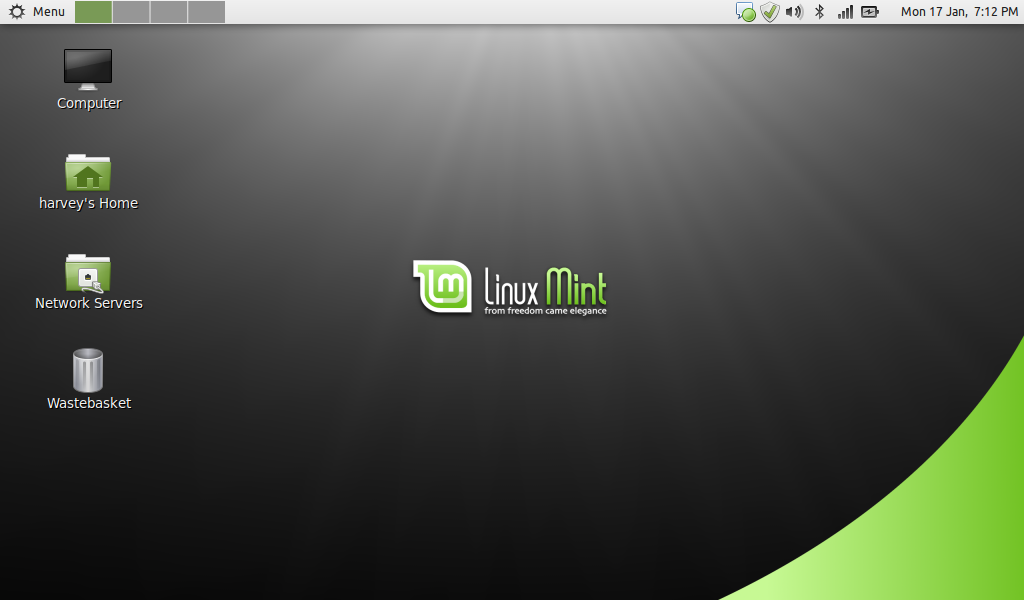
The standard desktop, with my own minor customisations for my netbook.

Mint uses a custom 'start' menu which is extremely functional and very attractive. The best I've used in any distribution.

Mint's theme applied to the standard Gnome file browser.

Mint's software centre for finding and installing apps.

Installation notes:
These notes are for my installation onto the HP Mini 110 based on my own needs. This is not an exhaustive guide, but I've tried to include as much detail as possible:

Setting up an SD card with 32 bit Mint Debian DVD for installation:
Format a 2Gb or larger SD card with FAT32 on Windows.

Download the 32 bit DVD .iso from the Mint web site (http://www.linuxmint.com/edition.php?id=66) and install to SD card using Windows UNetbootin (download from http://unetbootin.sourceforge.net/). I used the 'Mint 9 Live' preset.

Installation:
Connect wired LAN cable (needed to install wireless driver).
Insert SD card into netbook and switch on.
Press 'F9' on BIOS screen to select boot from SD card.
At UNetbootin boot menu, select 'Default'
Boot to the live desktop, then install system using the standard installer with the following options:

Computer name: hp-mini-110
Install GRUB on /dev/sda

When prompted. re-boot into the new desktop, install all updates, & reboot once more.


Fix missing wireless:
Install propriatary Broadcom driver thus:

In a terminal, type:
sudo aptitude update
sudo aptitude install module-assistant wireless-tools
sudo m-a a-i broadcom-sta

sudo vi /etc/modprobe.d/broadcom-sta-common.conf
Append the file with the following:
blacklist brcm80211

sudo update-initramfs -u -k $(uname -r)
sudo modprobe -r b44 b43 b43legacy ssb brcm80211
sudo modprobe wl
sudo iwconfig

Then reboot, disconnect your wired LAN cable, and configure wireless using Gnome Network Manager.


Install some essential apps:
Install using Software Manager or via terminal:
sudo apt-get install chromium-browser ttf-mscorefonts-installer gnome-alsamixer


Disable PC speaker (to stop an annoying buzz on boot and shut-down):
Launch Gnome Alsa Mixer, and mute the PC Speaker.


Desktop settings:
Desktop Settings -> Change button layout to 'Left - Mac like'.
Change panel from bottom to top.
Remove 'show desktop' icon from panel and replace with 'workspace switcher'.

Add Computer, Home, Network, and Trash icons to right-hand side of desktop using Desktop Settings. Untick Mounted Volumes.


Enable Compiz
Add the following Gnome startup entry:

Name: Compiz
Command: compiz --replace
Description: Start compositing manager

Reboot to enable Compiz, then In CCSM select:
General Options -> Focus & Raise Behaviour: Untick 'click to focus'. Tick 'auto-raise'.
Enable Application Switcher
Enable Minimize Effect
Move Window -> Change opactity to 75%
Enable Desktop Cube and Rotate Cube (needed to enable multiple desktops, otherwise you are stuck on just 1)
Desktop Cube -> Change cube colour to black (to remove blue cube top & bottom)
Rotate Cube -> Transparent Cube -> 'opacity during rotation' = 50%


Configure Power Management:
On AC Power:
Put computer to sleep: Never
When laptop lid is closed: Shutdown
Never spin down disks
Put display to sleep: 30 minutes

On Battery Power:
Put computer to sleep: 10 minutes
When laptop lid is closed: Shutdown
When laptop power is critically low: Suspend
Do spin down disks
Put display to sleep: 5 minutes
Do reduce backlight brightness

General:
Keep default settings


Configure Firewall and allow browsing Samba shares on Windows PCs, etc:
In a terminal type:
sudo vi /etc/default/ufw

then change:
IPT_MODULES="nf_conntrack_ftp nf_nat_ftp nf_conntrack_irc nf_nat_irc"

to:
IPT_MODULES="nf_conntrack_ftp nf_nat_ftp nf_conntrack_irc nf_nat_irc nf_conntrack_netbios_ns"

Save and exit vi, then in a terminal type:
sudo ufw enable
sudo reboot

And that's about it. I hope I've inspired you to try this interesting new distribution - I'm certainly hoping to keep it on my netbook in the long term.

Thanks for reading,
Nick

Sunday, October 17, 2010

1,000 mph on the streets of London

I like fast cars, and none come faster than Britain's latest attempt on the world land speed record - Bloodhound SSC. SSC stands for Super Sonic Car, which is precisely the aim of this latest project - a car which breaks the sound barrier (around 750mph) and then press on to over 1,000mph. Fiction you might think? Well, think again, as today the full-sized mock-up of the car was on-show on The Strand in London.


I have childhood memories of Richard Noble breaking the record in Thrust 2, but it was Thrust SSC (the first and only official supersonic record holder) which really captured my imagination. This car was run in the Black Rock desert in autumn 1997, a time when I was in Canada attending an extended software training course at Nortel. It was a fantastic time, and to be able to follow the record attempts on line, via the web site and e-mail updates, was cutting edge at the time and really engaged us followers in the runs. The webcam pictures of the Airshelta told you when the car was running (i.e. it was empty), and I still remember checking my e-mails in the classroom when instead I should have been paying attention to the lesson, and the day the record was broken. I wish I'd kept that e-mail!

Now the team are attempting to break their own record with Bloodhound, and I'm both a member of the supporters' '1K club', and an educational ambassador for the project, which is one of the key objectives of Bloodhound. In a world where land speed records may be a little out of fashion (ecologically, financially, etc) Richard Noble has put the emphasis on Bloodhound to make it a vehicle to inspire young students to pursue careers involving Science, Technology, Engineering, and Mathematics. To this end, Bloodhound is working closely with the UK government's STEM organisation, and ambassadors like me are taking the Bloodhound message into schools and hopefully inspiring more kids to go on to be the UK's technology pioneers of the future. I think it's a great idea, and I understand Bloodhound is proving a very popular addition to the curriculum.

Below are a few shots from today's demo in The Strand (including an appearance by Mr Noble who is a real star wherever he goes). I hope the traffic wasn't held up too much - buses, taxis, coaches, and even traffic wardens were pulled in to help set the scene! Good fun. Meanwhile, I urge you to visit the project's web site, and join the 1K club or contribute in any way you can.


[edit]
Some of my shots made it to the project's web site!

Thanks for reading,
Nick

Wednesday, September 8, 2010

A brand new word processor from 1995!

I received an e-mail out of the blue last week from a stranger. His name was Andreas Magerl from Germany, and he asked the a question: "Are you the Nick Harvey who wrote TextEngine for the AMIGA?"

After a quick flashback to a pre-internet 1990s, I recovered enough to reply "Yes"! As it turns out, Andreas runs an online magazine at http://www.amigafuture.de/ servicing what appears to be a thriving Amiga community. TextEngine was a hobby of mine during my younger years. As an owner of an Amiga A500, and later an A1200, I decided to programme my own simple word processor just for my own use. By today's standards it's no better than Windows Notepad, with a couple of additional features. But for me it did the job. For fun I submitted version 1.0 to Amiga Format Magazine who very kindly included it on their cover disc (issue 25, August 1991 to be precise). From there I released it into the Public Domain as a fully functional shareware product (via 17 Bit Software in the UK - now Team 17 -  if I remember rightly), and was very lucky to receive some donations from generous users all over the world.

Even though back then the Internet as we currently know it didn't exist, there was a growing FTP site called Aminet, the de facto repository for Amiga Public Domain software. TextEngine has resided there in good company for many years, and looking back it feels like that was in some way one of the places today's open source community has grown from. I hope it was.

Anyway, getting back to Andreas - he suggested I re-release TextEngine as a freeware product. Once he convinced me there would be a demand (I was rather sceptical) I fired up Devpac (within the incredible WinUAE emulator running on my PC) and was quickly making changes to my 15 year old 68000 source code. The result?

http://aminet.net/package/text/edit/TextEngine

And Andreas was right about the demand - it's been online for 2 days and has so far had over 100 downloads. So many thanks to everyone who has downloaded the 144kb file and still find it useful. Also an especial thanks to everyone who sent in money during the Shareware days - your names all still appear in the Amiga Guide file which accompanies the programme. And a final thanks to Andreas for giving me a brief opportunity to return to the good old days. TextEngine was a real pain to programme - I wouldn't do it again, and have no plans to return to it, but seeing it on-line, on magazine cover discs, and in magazine reviews (even the bad ones!) was very satisfying indeed.

And for those young kids amongst you who never enjoyed owning an old 16 / 32 bit computer such as the Amiga, here are some screenshots...

TextEngine's icon on a sparse desktop

TextEngine, editing its own source code

A very basic spell checker, but better than nothing

Thanks for reading,
Nick

Thursday, August 12, 2010

Cool stickers from Google's GMail Team

I'm a GMail user, and received an envelope full of nice stickers in the post this morning. Here they for the curious:


Thanks Google! But what does it all mean...?

Monday, July 19, 2010

OpenSUSE 11.3 - just how do you configure this animal?

In my last post I complained about issues in the latest OpenSUSE 11.3 release which annoy and frustrate me, especially as I believe they could be easily avoided. I've persevered with the distribution for a couple more days, hoping I could get to like it, but I'm rapidly loosing faith. Mainly due to the very confusing settings system SUSE employs.

One common but astonishing discovery is that the SUSE integrators appear to have included two of many of the main configuration panels. Granted, the duplication is between Gnome or KDE's built-in tools, and SUSE's proprietary YaST system, but as a user I've just got very confused. How am I supposed to know which tool to use? And who knows what happens if you switch from one to the other, creating duplicated settings for the same devices. Why have they left this choice to the poor, hapless user, instead of doing the sensible thing and removing the Gnome or KDE default where a better alternative exists in YaST?

Not convinced? Well, I'll stop moaning and will let the following screen-shots from a default Gnome installation do the talking. Who says you don't get value for money with Open Source software - two for the price of none anybody?

1a. Keyboard settings - Gnome:

1b. Keyboard settings - YaST:

2a. Mouse settings - Gnome:

2b. Mouse settings - YaST:

3a. Network settings - Gnome:

3b. Network settings - YaST:

4a. Printing settings - Gnome:

4b. Printing settings - YaST:

5a. Software updates - Gnome:

5b. Software updates - YaST:


I'll be keeping Fedora 13 on my netbook thanks, even if it does only have half the configuration options that SUSE offers. Sometimes less really is more.

Thanks for reading,
Nick

Saturday, July 17, 2010

OpenSUSE 11.3 - my Linux love / hate relationship continues...

OpenSUSE 11.3 was released this week after an 8 month development cycle, and so I had to download and try it out. This distribution is the only one which keeps me interested in KDE. It is also, in my opinion, the distribution which gets closest to feeling like a proper commercial product, including everything a user needs to get started. 8 months is longer than Fedora and Ubuntu takes to knock-out a release, so I expected the latest OpenSUSE to be highly polished.

I've played around with it for a bit in Virtualbox, trying to decide whether to replace Fedora 13 on my HP Mini netbook, and, well it's not been great. I've always had a love / hate relationship with Linux desktops, and the latest SUSE release has done nothing to help. What follows are my thoughts as to why this is. Granted, some of these issues are not specific to OpenSUSE, but I as far as the general integration and coherence of the Linux desktop is concerned, I think we still have a long way to go.


So let's start with the 'hates':
I installed the KDE desktop first, with default options, and booted-up. First look through the Kickoff menu, I notice the hateful 'Edutainment' category is there as usual, containing only the Marble desktop globe programme. I decide to uninstall this, but when I try I'm told Marble is a dependency for Digicam. Why? What have these two programmes in common? I load Digicam and open the 'Digicam handbook' to investigate. But instead of seeing the handbook, I get a KDE Help Centre error: "The file or folder help:/digikam/index.html does not exist". I give up.


Next, I install Google Chrome and launch it. It complains it is not the default browser so I tell it to become so. But wait, next time I launch Chrome, I'm told again it is not the default. And again, and again. OK, this is a known issue with Chrome but it's been around for months. How frustrating that such an apparently simple, yet annoying incompatibility between two significant open source products can hang around for so long.

Oh, and on the subject of browsers, why is Konqueror still included? I would like to see this removed by default in future releases. It just seems to be irrelevant. So I've just uninstalled it, which worked fine actually, so this annoyance is easily solved.

There are two different control panels: System Settings, and Administrator Settings (YaST). Both appear in different locations in the main Kicker menu, and there's no obvious clue as to which one contains the setting you want to change. In fact, both tools overlap in some areas, such as network settings, date & time, system services, and so on. If I change a setting in one tool, then change it in another, what happens? I'm just amazed nobody has stood back and said "this is confusing, we need to simplify this". Just one single control panel next time will do thanks.

Oh, and one more comment about YaST's omnipresence in the Kicker menu. When I click on the 'Computer' view, I see an icon named YaST, with a sub-title of 'Administrator Settings'. However, in the Applications -> System menu, it appears with the same icon, but now named 'Administrator Settings' and sub-titled 'YaST'. Unnecessary inconsistency - does anyone check for this kind of thing?


It's a shame SUSE has not adopted the Plymouth boot system for seamless graphical boot. It's a matter of taste, but I like my PC to just switch on and take me to the log-in screen without any fuss. MacOS X and Windows does this quite nicely. So does Fedora. But SUSE shows you the Grub menu for too long (8 seconds), followed by ugly text as the Kernel is loaded, and then finally quite an attractive graphical load while everything initialises. It all feels a bit old fashioned.

EDIT 19/07/2010:
Oh, and what appears to be one quite serious bug to make it through to release, is that as far as I can fathom, you can't enable AppArmor. Try it. Go to YaST, AppArmor Control Panel, which brings up a fairly blank panel with a check box entitled 'Enable AppArmor'. Enable this, then click 'Done'. AppArmor is now enabled, yes? No! Open AppArmor Control Panel again, and the check box is de-selected once more.


EDIT 28/09/2010:
I've actually been running Suse on my netbook for the last couple of weeks having decided to try it one more time. Today a fix for this Apparmor issue has just downloaded and I can confirm this is now resolved. We're heading in the right direction.

OK – that’s enough moaning. Now, what do I love about this distribution?
The installer is very nice - attractive, user friendly, functional, & fast.

I love the way that, on first boot, the system checks for updates and automatically pulls-in Adobe Flash Player (which also works great on the 64bit distribution) and then offers you an option to download Microsoft Fonts & MP3 codecs. OK, slightly at odds with the spirit of free software, but since most users install this stuff anyway, I love the fact SUSE makes it easy (and optional, should you wish to remain free). This is better than any other mainstream distribution I have tried.

I love OpenSUSE's integration of OpenOffice into the KDE theme. Very smart.


Excellent default desktop theme in fact, although why does the Gnome desktop have a larger selection of wallpaper than KDE? Annoying inconsistency [sorry, I know this is the 'love' section]!

YaST, despite the appalling name, is an extremely capable system configuration tool. Probably the best out of any of the main distributions.

KDE's 3D desktop effects are very slick and attractive, and I prefer them to Gnome's equivalents.

Conclusion:
Again, please don't take all of my complaints to be directed specifically at OpenSUSE. These are frustrations I feel with most distributions, but OpenSUSE's latest release just prompted me to write about them. Functionally SUSE has a lot going for it, but it could be so much better with some attention to detail in the user interface.

Fortunately though, with Linux being so configurable, I might just spend some time trying to get things how I want them. I'm not convinced yet that 11.3 will replace Fedora 13 on my netbook, but I might just install it and see.

Finally, I must recognise the fact that OpenSUSE, along with all the other distributions, is completely free. For the cost of a 4Gb download I have a hugely sophisticated and powerful system at my disposal. I can only thank everyone who contributes to these projects, and hope all of these distributions continue to improve over the next few years.

Thanks for reading,
Nick

Sunday, May 16, 2010

Fedora 13 & Gnome Shell - looking great.

Having just declared my admiration of Ubuntu 10.04's slick new look, too soon has my in-built need to find something better kicked-in. Not that there's anything wrong with Ubuntu 10.04, but I've always been a Fedora fan, and with version 13 due for release on 25 May, I had to give the latest beta a try. And I reckon it's great.

Having installed the Gnome live CD to my hard disk, all my usual apps have installed well. Fedora's default theme though, despite some attractive wallpapers, is looking rather out of date in my opinion. Having enjoyed Ubuntu's latest look, I went in search of a way of improving Fedora's look, and installing Gnome Shell (a preview of the new user interface due in Gnome 3.0 later this year) seems to have done the trick.

Gnome Shell is still under development and therefore incomplete, but from my initial tests, it is already very usable and stable. If you want to learn more about what it does, I suggest you follow the official tour here. Otherwise, below is a quick guide to getting it working in Fedora 13:

1. Open the Add/Remove Programs package manager, and install the following package:

gnome-shell

2. Once installed (it only takes a few seconds to download), open the Desktop Effects settings, in which you will notice a new option for Gnome Shell. Enable this now:


3. That's it. Simple eh?

Below are a couple of screenshots of the new desktop in action. Of course, getting this working depends on your system having a compatible graphics card and drivers, but I believe if you are already able to run Compiz, then Gnome Shell should work too. My test laptop has in-built Intel graphics and works fine.

So I think I'll stick with Fedora & Gnome Shell for the time being (farewell Ubuntu!), and very much look forward to Fedora 14 later this year, which should hopefully include Gnome 3.0 and Gnome Shell by default.


Thanks for reading.